
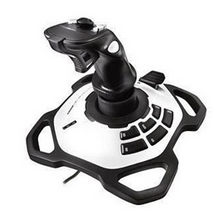
- Connect Logitech extreme 3D joystick to your computer.
- Download and install PTZ Controller Software
- Click menu Joystick -> Connect to select the detected Logitech extreme 3D joystick.
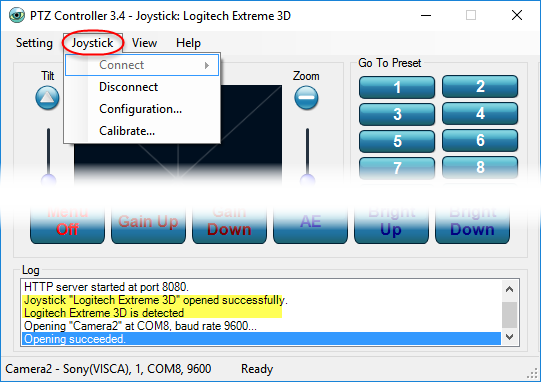 Once Logitech extreme 3D joystick is connected with your computer, you will see the info in PTZ Controller Log panel.
4. Click menu Joystick -> Configuration to show Joystick Configuration panel.
Once Logitech extreme 3D joystick is connected with your computer, you will see the info in PTZ Controller Log panel.
4. Click menu Joystick -> Configuration to show Joystick Configuration panel.
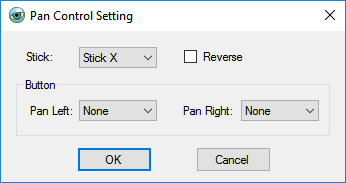
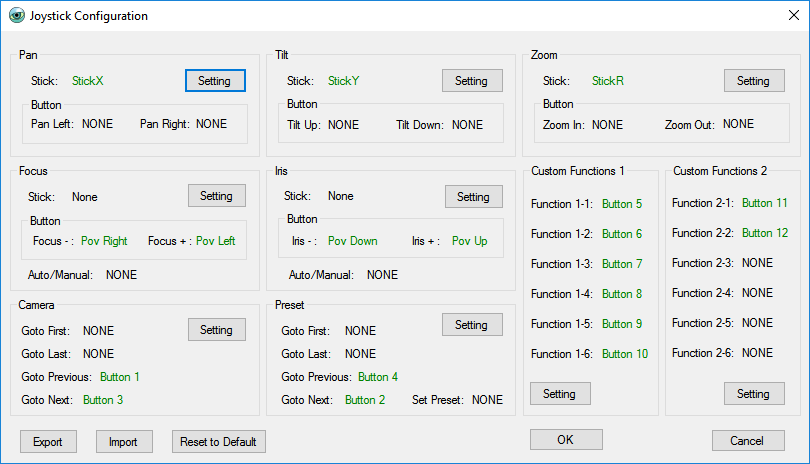 5. Click Setting button to select stick or button to map the function for Pan, Tilt, Zoom, Focus, Iris, Camera, Preset, and Custom Functions as you want. Here is the example for Pan control setting.
 You can Export or Import your configuration, as well as Reset to Default setting.
For Logitech extreme 3D joystick, the default function mapping shown as below.
- X Axis Pan
- Y Axis Tilt
- Z Axis Zoom
Pov are mapping to Iris and Focus.
- Pov Up Iris –
- Pov Down Iris +
- Pov Left Focus –
- Pov Right Focus +

Button’s Function
- Button 1 Next Preset
- Button 2 Previous Preset
- Button 3 Next Camera
- Button 4 Previous Camera
- Button 5 —
- Button 6 —
- Button 7 Customized Button 1
- Button 8 Customized Button 2
- Button 9 Customized Button 3
- Button 10 Customized Button 4
- Button 11 Customized Button 5
- Button 12 Customized Button 6

