
Before using PTZ Controller to control a serial PTZ camera, make sure the serial connection between the camera and computer is working correctly.
Serial PTZ cameras may use RS-232, RS-485, or RS-422 connections. If you are using an RS-232 connection, a loopback test can help verify that the computer’s serial port and cable are working properly.
Test an RS-232 Serial Port
The following diagram shows the standard RS-232 DB9 pinout.

To perform an RS-232 loopback test, connect the RX and TX pins on the computer’s serial port. For a standard DB9 RS-232 port, these are pin 2 (RX) and pin 3 (TX).
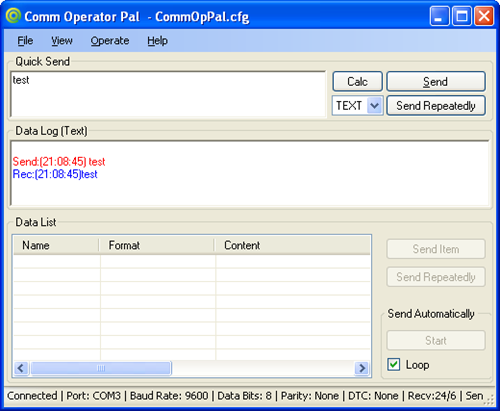
Run Comm Operator Pal and select the same COM port and baud rate you plan to use with PTZ Controller. Send test data through the serial port.
If the serial port is working correctly, the transmitted data should be received back and displayed in the log window.
Test the Serial Cable
If the serial port passes the loopback test, you can also test the cable. Disconnect the cable from the PTZ camera, connect the appropriate transmit and receive conductors at the camera end, and perform the loopback test again.
If the data is echoed back correctly, the computer’s serial port and cable are working.
A successful loopback test verifies the serial communication path, but it does not verify the PTZ camera itself or guarantee that the camera settings are correct. Make sure the protocol, camera address, baud rate, and other serial settings in PTZ Controller match the camera configuration.
For information about connecting a PTZ camera to a computer, see How to Connect a PTZ Camera to a Computer.