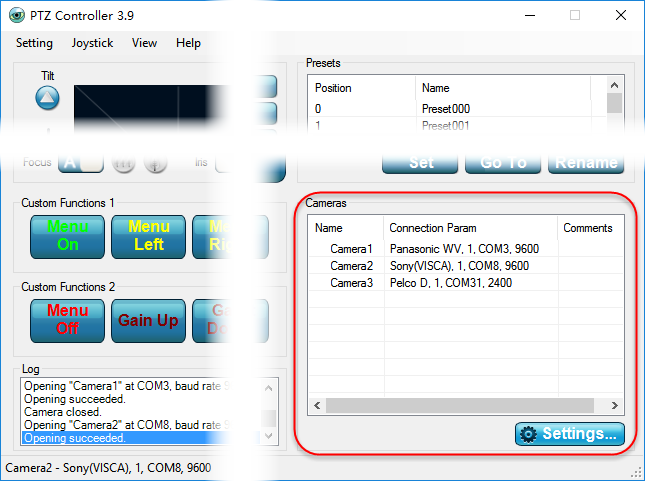
PTZ Controller supports multiple PTZ cameras, including compatible serial and network/IP PTZ cameras.
PTZ Controller supports multiple PTZ cameras.
Cameras can be added and configured in Camera Manager. Each camera can have its own name, address, protocol, COM port, baud rate, and other communication settings.
For serial PTZ cameras, make sure the camera address, protocol, baud rate, and serial port settings match the actual camera configuration.
If you are setting up a serial camera for the first time, see How to Connect a PTZ Camera to a Computer.
If you experience communication problems, see How to Test the Serial Connection Between a PTZ Camera and a Computer.
PTZ Controller also supports compatible network/IP PTZ cameras. Network cameras can be added using the appropriate IP address, port, protocol, and authentication settings. For more information, see Does PTZ Controller Work with IP Cameras?
After cameras are added in Camera Manager, they can be selected and controlled from the Camera Panel.
Camera compatibility depends on the camera model, protocol implementation, and connection configuration. We recommend testing PTZ Controller with your actual cameras using the 30-day free trial before purchasing.
Configure Multiple PTZ Cameras

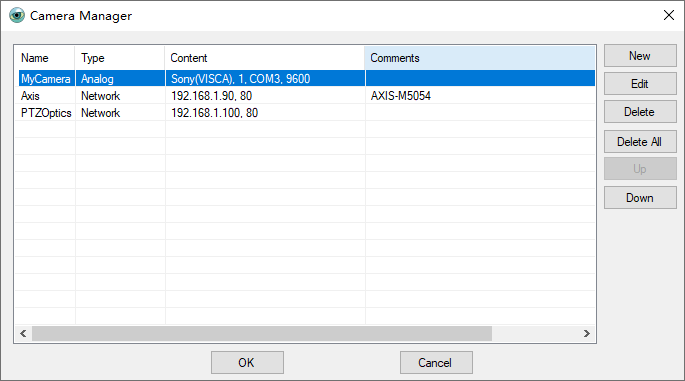
Click menu Setting –> Camera Manager to open Camera Manager panel.
It can also be opened by clicking  button on camera panel.
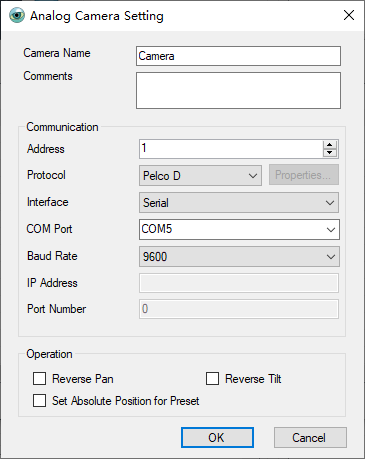
Click New button to show Camera Setting Panel to edit or select the camera’s name, address, protocol, connected Com Port and baud rate. Please refer the manual of your PTZ Camera to select the right value.
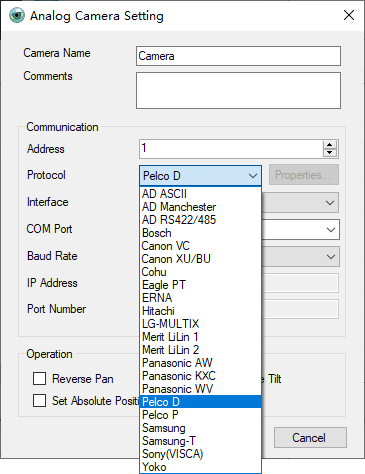
All supported protocols are list here.
All added cameras will be list in Camera Panel on normal main interface.